Codex beginner setup
How to use Codex in 4 steps with 1routers
New to Codex? Skip command-line setup and configuration files for now. Install 1routers, complete the guided account connection, launch the official Codex desktop experience from 1routers, and send a small read-only task in a test folder.
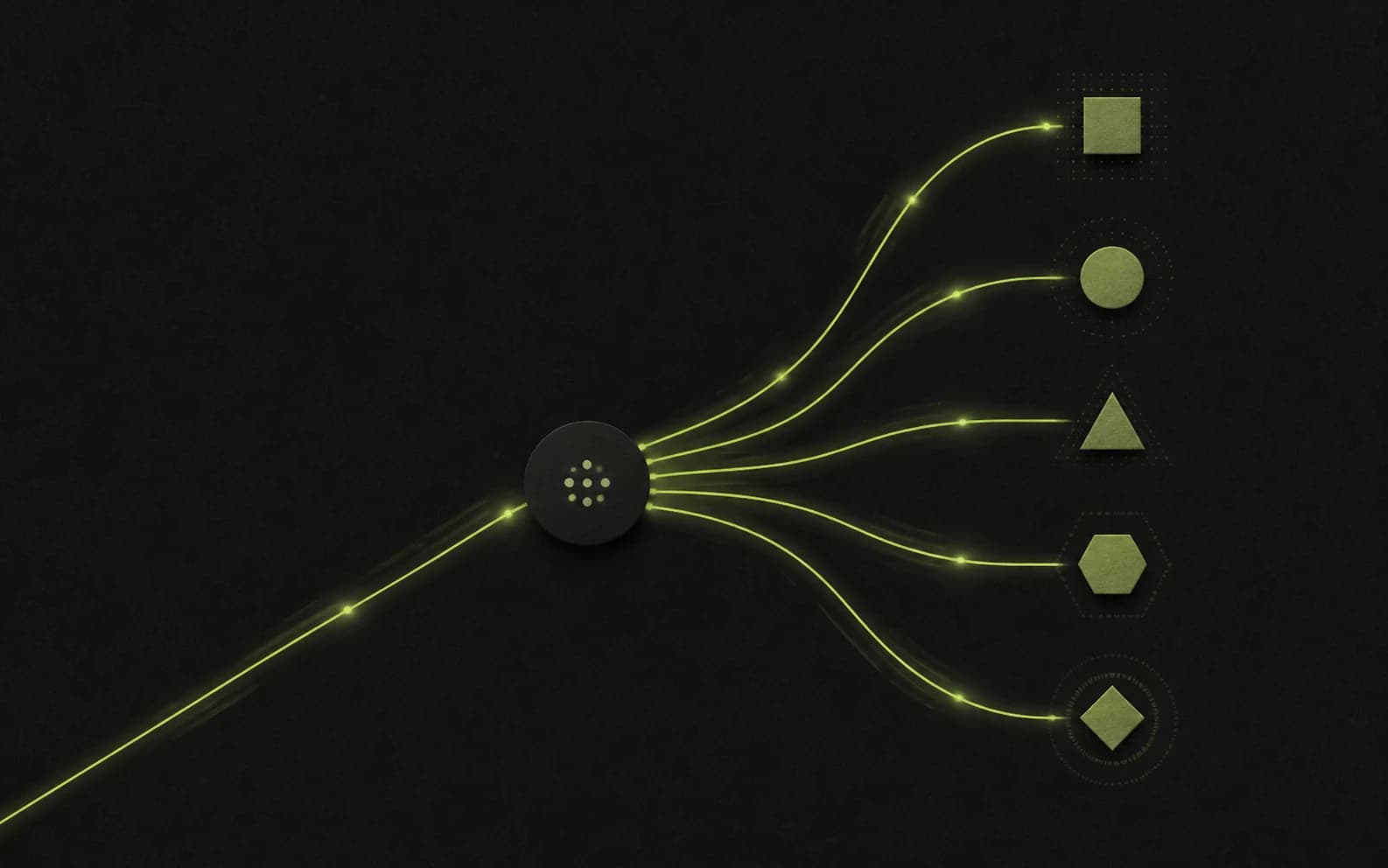
The four things a beginner needs to do
The 1routers path to Codex is: download 1routers → connect your account → launch Codex from 1routers → send one small task. During first-time setup, 1routers checks the Codex version it needs and guides you through any missing installation. The account connection returns to the desktop helper automatically, so you do not need to edit a config file or paste an API key by hand.
- Download the 1routers build that matches your computer.
- Open 1routers and select Start Setup.
- Register or sign in in the browser, then let the connection return to 1routers.
- Launch Codex from 1routers, choose a folder, and send your first instruction.
You do not need the command line for this setup. If you only want to try Codex, use an unimportant test folder.
Many Codex guides begin with npm, Homebrew, API keys, or a custom base_url. Those options are useful for later customization, but they are not prerequisites for completing a first task through this guided desktop path.
Step 1: download the right 1routers build
Open the 1routers installation page and select Download 1routers. Choose the macOS build on a Mac. On Windows, most Intel or AMD PCs need Windows x64; choose Windows ARM64 only for Snapdragon and other ARM-based PCs.
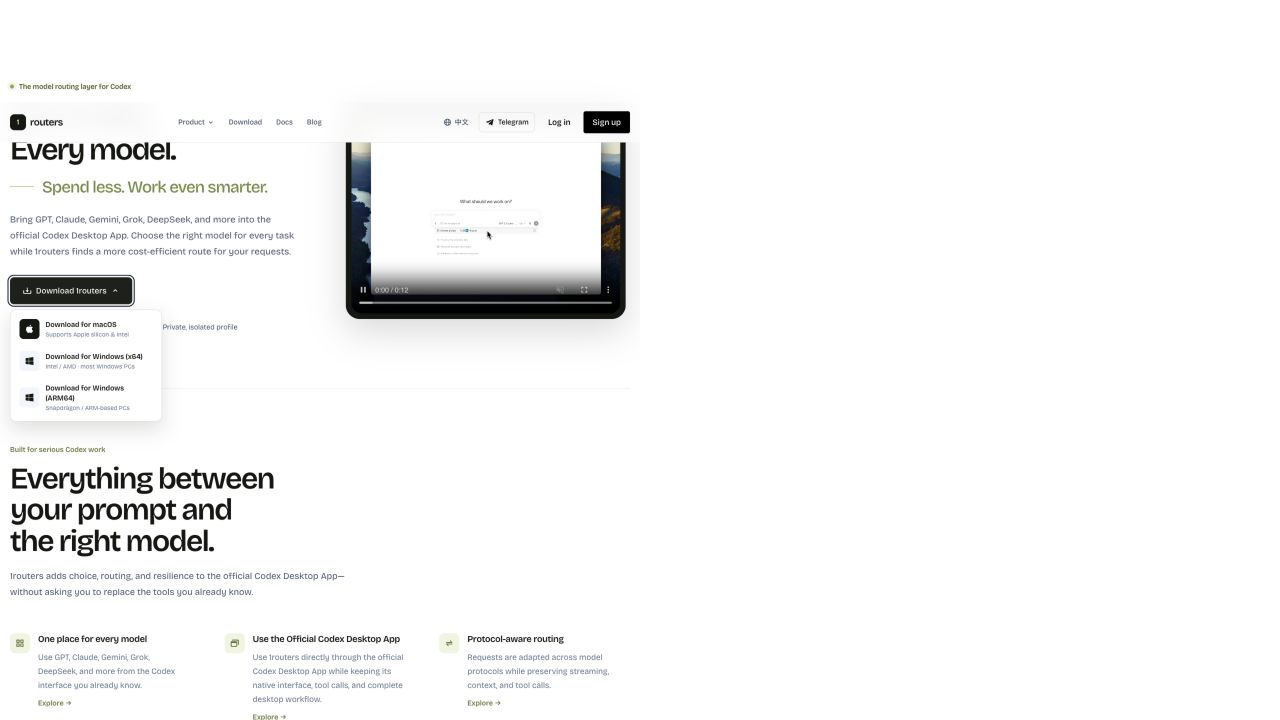
Windows may currently describe the installer as uncommon or show an unknown-publisher notice. Continue only after confirming the file came from download.1routers.com. Do not disable Windows Security, and stop if your security software explicitly reports malware.
Step 2: open 1routers and start setup
After installation, open 1routers. It lives in the macOS menu bar or the Windows notification area. When the first-run guide appears, select Start Setup.
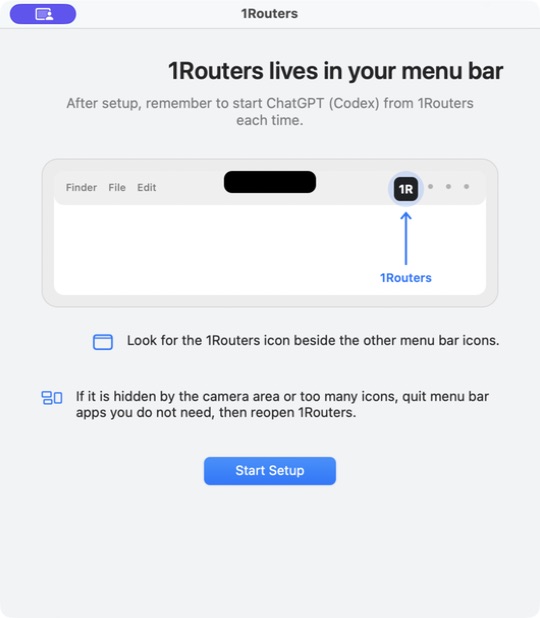
If a supported Codex build is missing, follow the guided download and installation prompt. Seeing the app name ChatGPT does not mean you installed the wrong application: OpenAI currently presents Codex as a work surface in the official ChatGPT desktop app.
Step 3: register or sign in to 1routers
Setup opens a browser where you can use Google, GitHub, or email to create a 1routers account. Existing users can sign in instead. After success, the browser hands the connection back to 1routers; you do not need to find, copy, or edit an API key yourself.
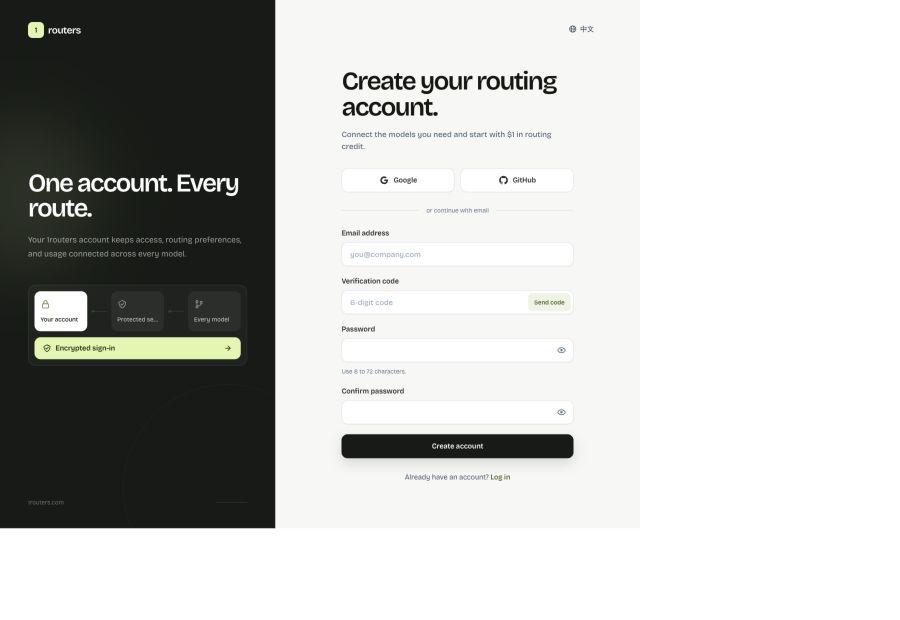
If setup does not continue after sign-in, return to the 1routers menu and start the connection again. Do not keep reusing an old connection URL.
Step 4: send a first task in Codex
Launch Codex from the 1routers menu and choose a test folder. Then send this message:
Do not change any files yet. Read this folder and tell me:
1. What the contents are for
2. How to run the project, if it is one
3. The smallest useful task I should try first
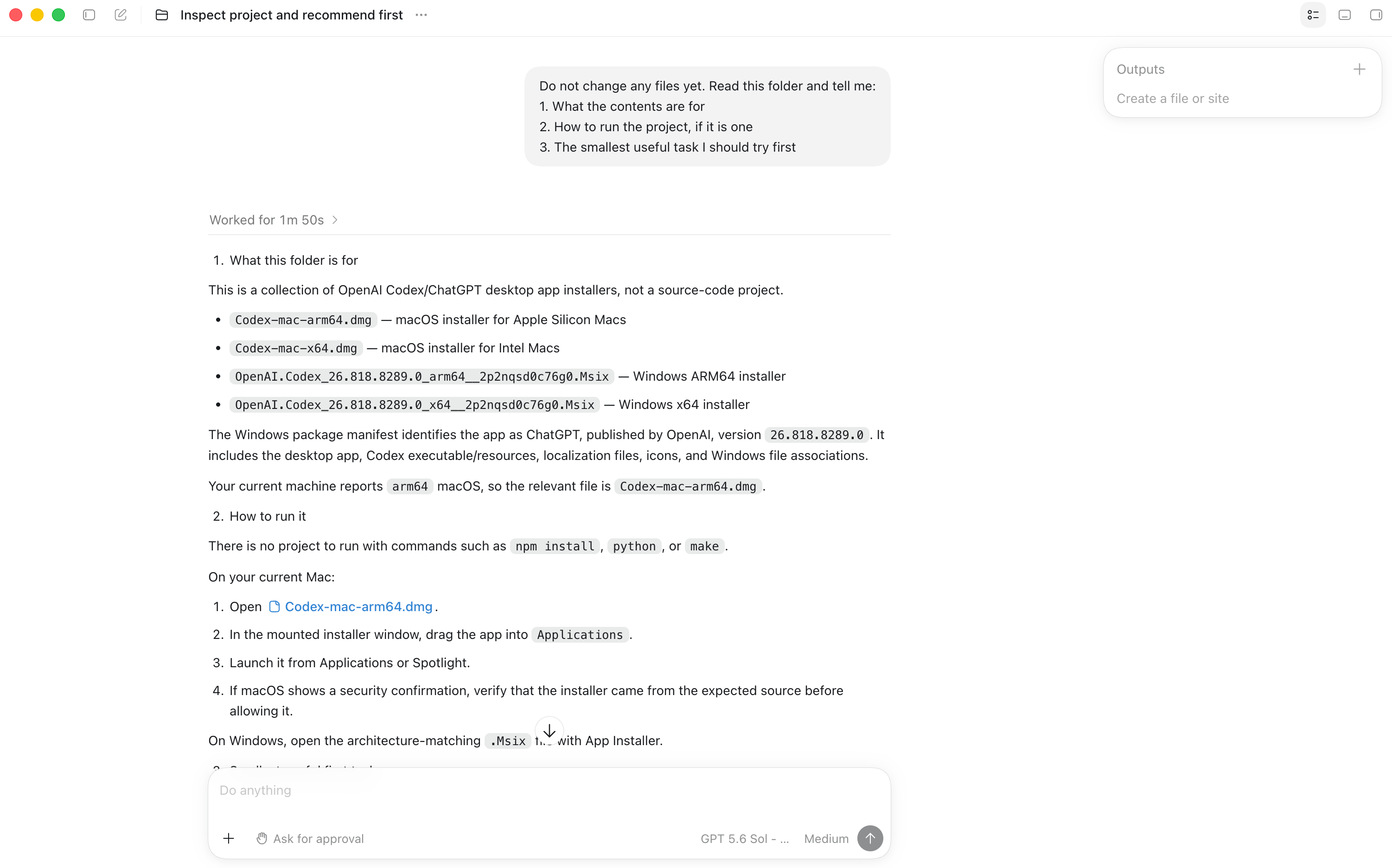
This is a read-only first check. Once Codex answers, try a narrowly scoped change such as: “Add an installation paragraph to the README. Show me the plan before editing.”
Two signals confirm the setup is working:
- Codex returns an answer.
- The 1routers menu shows Codex as running, and the corresponding usage record later appears in the account dashboard.
How should a beginner describe a Codex task?
You do not need an elaborate prompt. State four things clearly:
| Include | Beginner example |
|---|---|
| Goal | “Add a back button to this page.” |
| Scope | “Only change the login page.” |
| Boundary | “Show me the plan first and do not delete files.” |
| Check | “Run the existing tests and list the files you changed.” |
Copyable formula: Please complete [goal], only work within [scope], do not [boundary], and verify the result by [check].
Common Codex setup questions
Do I need the command line to use 1routers?
No command line is required for downloading, connecting an account, or launching Codex. Later tasks may use a terminal when the selected project requires it, but that is separate from the 1routers setup.
What part of Codex setup does 1routers simplify?
The first-run flow imports the route credential and isolated configuration for you. This removes the need to buy a separate model API, paste an API key, or edit a config file before your first task. Account, download, and network availability still depend on the current 1routers and OpenAI services in your location.
Why should I launch Codex from 1routers?
1routers uses an isolated Codex profile for its routing configuration instead of overwriting your existing environment. A separately launched Codex instance may not use that profile.
Do I need to paste model-provider API keys into Codex?
When using routes provided by 1routers, complete the 1routers account connection and make sure the account is active. The guided setup imports the 1routers credential automatically. Do not paste credentials into a chat message.
Why does my interface look different from these screenshots?
Codex and the ChatGPT desktop app continue to change, so button locations and model names can move. The meaningful check is whether the instance launched from 1routers can open a folder, accept a task, and return an answer.
What should I do next?
Run the read-only test above, then continue with the Codex quickstart. Read the routing tier guide when you are ready to compare cost and route behavior; you do not need to learn every model or tier before your first task.
This guide reflects the current 1routers setup flow and references the official OpenAI desktop quickstart. 1routers is an independent product. References to Codex, ChatGPT, and model names describe compatibility and do not imply affiliation or endorsement.