A complete no-code Codex MCP walkthrough
How beginners can use MCP in Codex: build a persistent cat memory in 5 steps
MCP does not need to begin with databases, repositories, or a coding project. Connect Codex to a small local memory server, store a fictional cat's birthday and preferences, then prove the connection by retrieving them from a brand-new task.
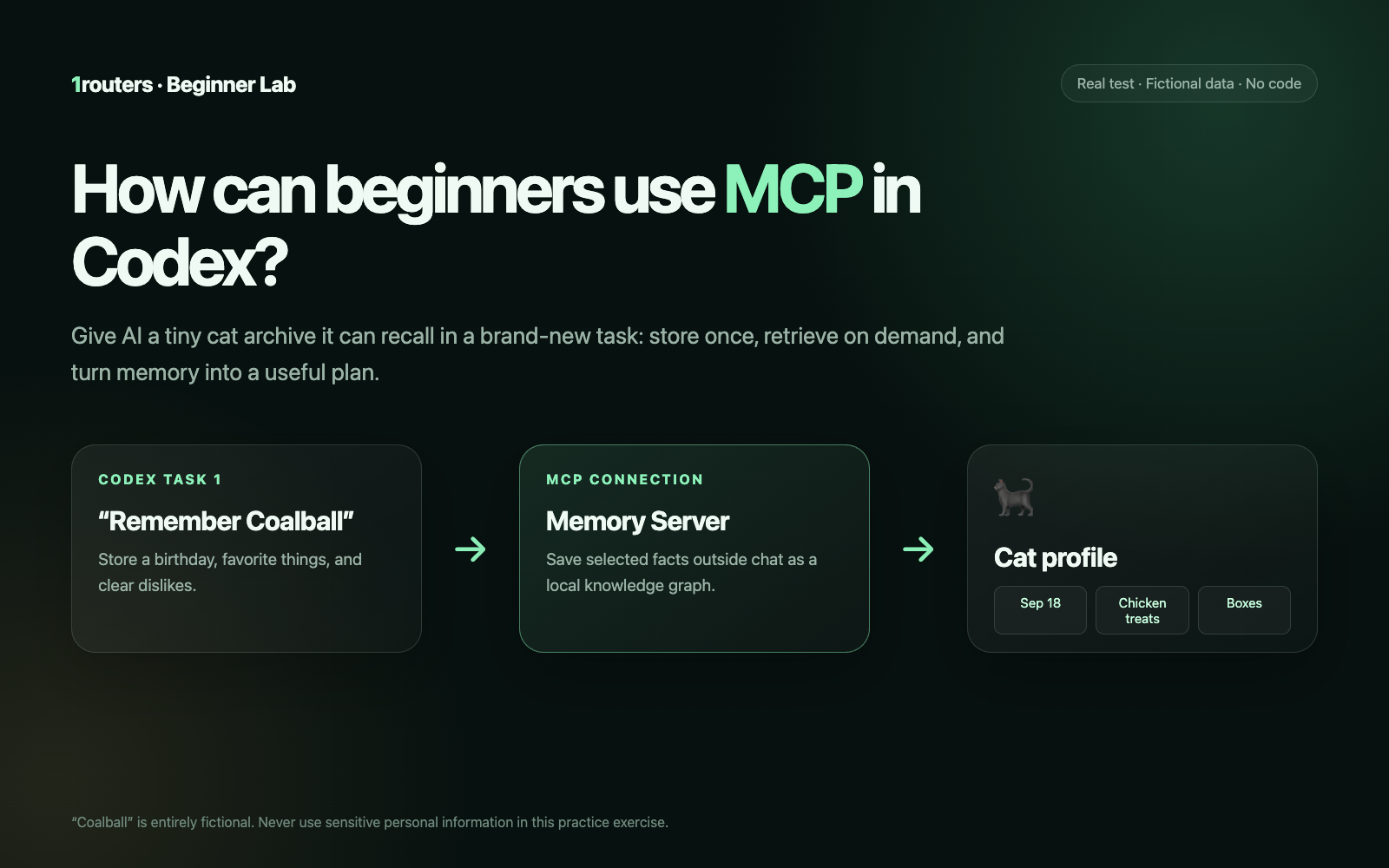
The short answer: MCP is a bridge from Codex to another capability
MCP, or Model Context Protocol, is an open protocol that lets Codex connect to external tools and context. Once an MCP server is installed, Codex can query or change the data that server exposes within the permissions you allow. In this tutorial, a local Memory MCP stores selected facts and retrieves them from a different Codex task.
This is not a coding project, and it uses no personal information. We create an entirely fictional black cat named Coalball, store one entity with six observations, and ask Codex to turn those memories into an at-home birthday surprise under ¥100.
You can start with the bilingual Codex MCP cat-memory practice pack (ZIP). It contains a project configuration template, Chinese and English prompts, and a sample JSONL record—no credentials, accounts, or private development material.
Tools, Skills, MCP, and plugins in plain language
You do not need an architecture diagram. Four simple mental models are enough:
| Term | Beginner mental model | Role in this demo |
|---|---|---|
| Tool | A “hand” Codex can call | create_entities, search_nodes |
| Skill | A reusable procedure for those hands | The Presentations workflow in the previous guide |
| MCP | A bridge to another capability or data source | The local Memory Server connection |
| Plugin | An installable capability bundle | It may include Skills, tools, MCP servers, or connectors |
OpenAI documents two MCP transports for Codex: local-process STDIO servers and URL-based Streamable HTTP servers. The ChatGPT desktop app, Codex CLI, and IDE extension can share MCP configuration. See the official OpenAI Codex MCP documentation.
The Memory Server used here is an official Model Context Protocol reference server. It stores entities, relations, and observations in a local knowledge graph and exposes tools such as create_entities, add_observations, and search_nodes. Its source and environment settings are in the official Memory Server repository.
What you will complete in five steps
| Step | What you do | Proof of success |
|---|---|---|
| 1 | Check Codex, Node.js, and a stable folder | The terminal prints version numbers |
| 2 | Install cat_memory_demo | The server appears in MCP configuration |
| 3 | Restart and inspect the connection | /mcp shows a connected server |
| 4 | Store Coalball's profile and query it again | One entity and six observations return |
| 5 | Open a new task and retrieve the profile | The new task recalls the birthday and preferences |
The cat is only a friendly test fixture. The reusable standard is: you can install it, see the tool calls, retrieve data across tasks, and clean everything up afterward.
Step 1: prepare Codex, Node.js, and a stable folder
Before you begin, confirm that:
- You can launch Codex through 1routers and create a task. If not, follow the four-step Codex beginner guide.
- Node.js is installed. If necessary, install a current LTS release from the official Node.js download page.
- Your first test uses only the fictional data in this article—not passwords, identity numbers, addresses, medical records, customer data, or company secrets.
Check Node and NPX in a terminal:
node -v
npx -v
If both commands print a version, create a stable directory for the memory file:
mkdir -p "$HOME/Documents/Codex-MCP-Cat-Memory-Demo"
The Memory MCP will write cat-memory.jsonl there. This is a local data file, not a cloud account and not an automatic archive of your private conversations.
Step 2: install the Memory MCP with one command
Copy the complete command into your terminal:
codex mcp add cat_memory_demo \
  --env MEMORY_FILE_PATH="$HOME/Documents/Codex-MCP-Cat-Memory-Demo/cat-memory.jsonl" \
  -- npx -y @modelcontextprotocol/[email protected]
This command deliberately:
- Gives the server a memorable name,
cat_memory_demo. - Stores data in Documents instead of an easy-to-clear package cache.
- Pins the exact version tested for this guide,
2026.7.4.
The command adds a user-level server, so other tasks on the same Codex installation can see it. For project-only scope, download the practice pack, copy .codex/config.template.toml to .codex/config.toml in your project, and replace __MEMORY_FILE_PATH__ with an absolute path on your computer. Project-scoped configuration only loads in trusted projects.
If the terminal reports codex: command not found, do not download an unrelated binary with the same name. In ChatGPT/Codex, open Settings → MCP servers → Add server, use the name cat_memory_demo, choose STDIO, and enter npx -y @modelcontextprotocol/[email protected]. Set MEMORY_FILE_PATH to the absolute JSONL path above. UI fields vary by release; if your build does not expose environment variables, use the project template from the pack.
Step 3: restart Codex and verify the bridge first
Restart ChatGPT/Codex after saving the server. Create a task for the practice folder and type:
/mcp
You should see cat_memory_demo and its tools. CLI users can also run:
codex mcp list
If your Codex build exposes MCP approval settings, a useful beginner default is writes: reads can proceed normally, while tools that create, update, or delete data still ask for review. The official configuration field is:
default_tools_approval_mode = "writes"
Do not permanently auto-approve every write merely to remove one prompt. The more a server can do, the more important it is to inspect the tool name, destination, and scope.
Step 4: store the first profile and verify it immediately
Paste this prompt into Codex:
Use cat_memory_demo to remember this entirely fictional tutorial data:

Coalball is a fictional black cat born on September 18, 2023. Coalball likes chicken treats,
cardboard boxes, and watching rain by the window. Coalball dislikes fish-oil smell and loud vacuums.

Requirements:
1. Save “Coalball” as one pet entity. Save the birthday, three likes, and two dislikes as clear, separate observations.
2. Do not read or store any real personal information.
3. After writing, use search_nodes from the same MCP to query “Coalball”.
4. Report only the data actually returned and the MCP tool names you used.
When a write approval appears, confirm that the server is cat_memory_demo and that the tool is creating an entity or adding observations. In the real test, Codex called:
cat_memory_demo.create_entities
cat_memory_demo.search_nodes
The query returned exactly one pet entity and six observations: one birthday, three likes, and two dislikes.
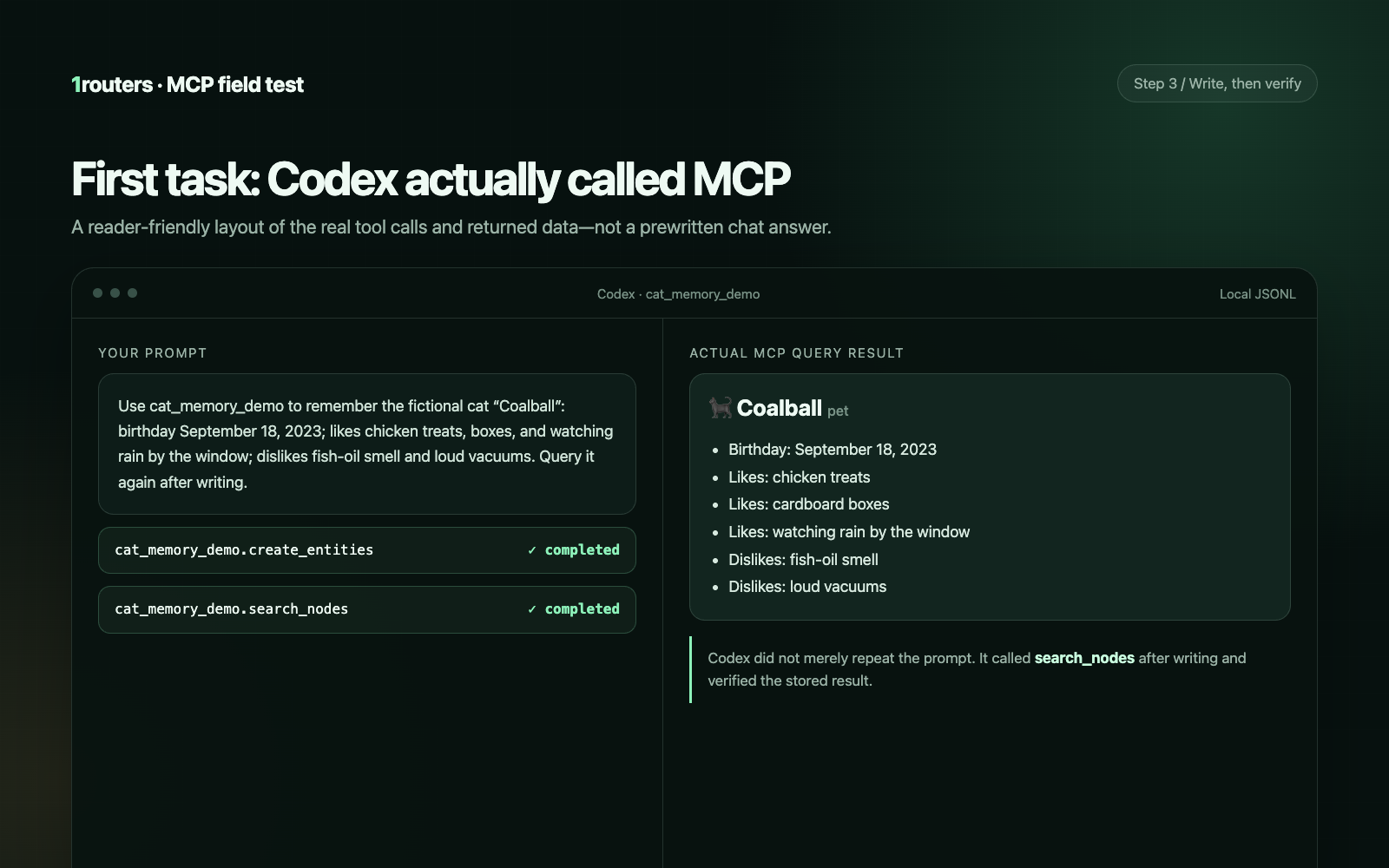
The verification step matters: always query after writing. “I remembered it” is not proof that data reached the MCP; a returned entity is.
Step 5: start a new task and prove it is not chat context
Open a separate Codex task with the same MCP configuration and send:
This is a brand-new, independent task. Do not guess from chat context and do not use file tools.
Use only cat_memory_demo.search_nodes to query “Coalball”. Tell me the birthday, likes, and dislikes,
state clearly that the data came from MCP memory, and list the MCP tool name you used.
In the real run, the second task called only search_nodes and recovered the birthday plus all five preferences. A third task then used the retrieved profile to plan a “Cardboard Rainy-Day Treasure Hunt”: build safe box tunnels, hide a few chicken treats, place the main box by a secure window, and avoid loud vacuum noise. The suggested budget was ¥20–40.
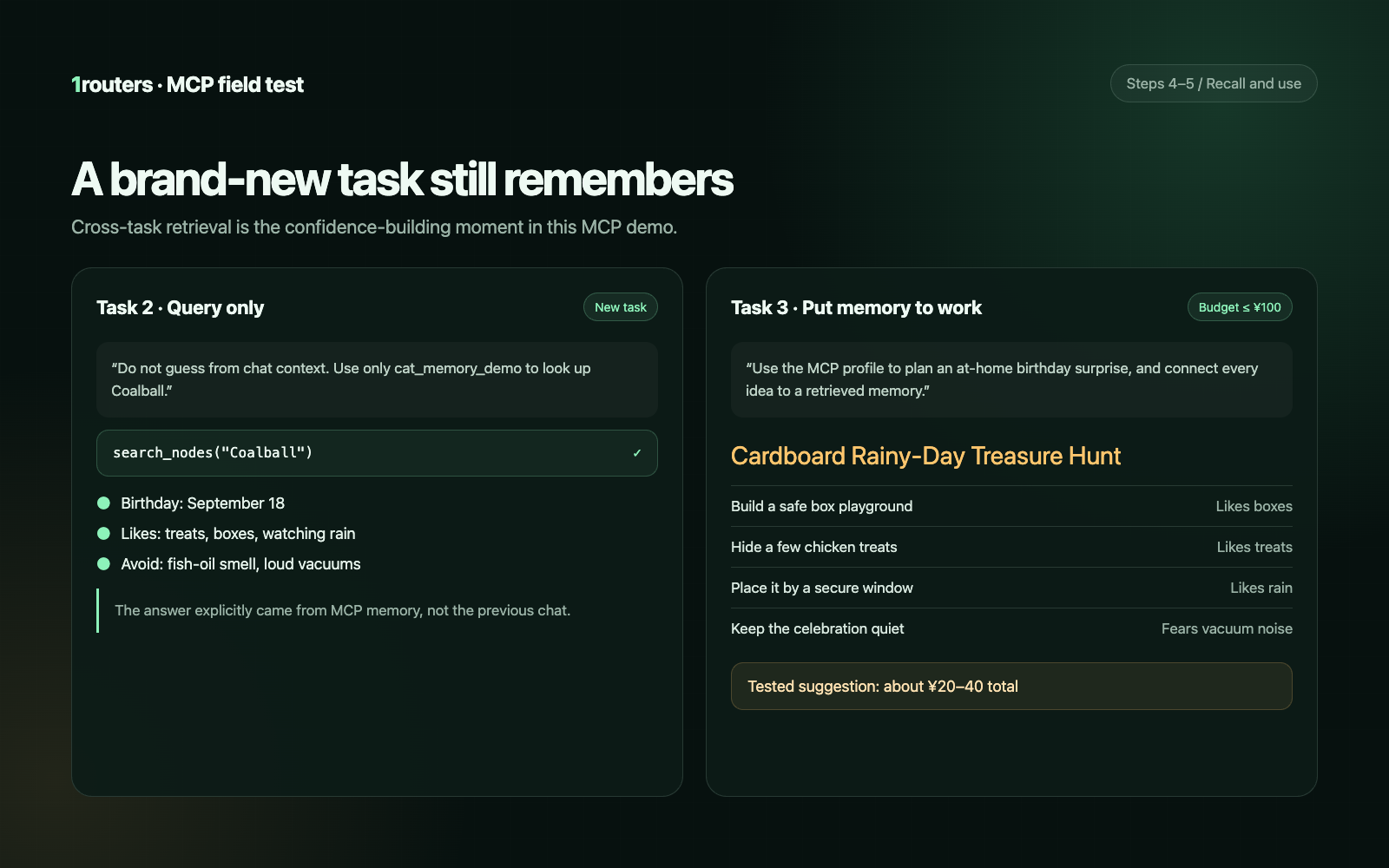
Three pieces of evidence show that MCP—not conversational guesswork—did the job:
- The new task never received Coalball's profile in its prompt.
- The activity record shows
cat_memory_demo.search_nodes. - The answer matches the observations stored in the local JSONL file.
One useful extension: update a preference without losing its history
Try this:
Use cat_memory_demo to update the fictional profile for Coalball. Add the observation:
“Preference change: previously disliked fish-oil smell; now accepts a small amount mixed into chicken purée.”
Do not delete the old observation because we want to preserve the history. Then query Coalball again and report only the stored profile and MCP tool names used.
The tested run called add_observations. The six existing facts remained, and the preference change appeared as a seventh observation. The prompt is reliable because it specifies what to add, what to preserve, and how to verify the result.
The same pattern works with other record-oriented MCPs:
object + new fact + treatment of old fact + query again after completion
Where is the memory actually stored?
This tutorial writes to:
~/Documents/Codex-MCP-Cat-Memory-Demo/cat-memory.jsonl
The initial record looks like this:
{"type":"entity","name":"Coalball","entityType":"pet","observations":["Birthday: September 18, 2023","Likes: chicken treats","Likes: cardboard boxes","Likes: watching rain by the window","Dislikes: fish-oil smell","Dislikes: loud vacuums"]}
That gives you four clear boundaries:
- The model did not permanently learn the profile; the server wrote selected facts to a file.
- The server does not automatically save every chat message. Only explicit write tools change the graph.
- A new task can retrieve the profile when it loads the same server and file path.
- Removing or replacing the JSONL file removes this example memory.
How to uninstall and clear the demo
Remove the server configuration with:
codex mcp remove cat_memory_demo
That command does not delete the JSONL data file. When you no longer need the fictional profile, move the Codex-MCP-Cat-Memory-Demo folder to Trash. For a project-scoped installation, remove the [mcp_servers.cat_memory_demo] block from that project's .codex/config.toml.
Before connecting a drive, mailbox, GitHub account, design workspace, or company system, inspect the server's source, permissions, write scope, and removal process. An MCP server is software that runs locally or connects to an external service; it is not merely a prompt with an entertaining name.
Frequently asked questions
Do I need to know how to code to use MCP in Codex?
No. This walkthrough uses one installation command, a small configuration, and natural-language prompts. The essential beginner questions are who you connected, what it can do, where data lives, and how to undo it—not whether you know JavaScript or Python.
Why does /mcp not show the server after installation?
Restart Codex, verify that node -v and npx -v work, check the server name, and confirm the file is named config.toml, not config.toml.txt. Project-scoped configuration only loads for trusted projects; user configuration normally lives at ~/.codex/config.toml.
Why does a new task say it does not know Coalball?
The new task may not have loaded the same server, MEMORY_FILE_PATH may point to a different file, or the initial write may have failed. Require a search_nodes call and inspect the tool activity instead of accepting a guess.
Does Memory MCP automatically remember every conversation?
No. This reference server stores only the entities, relations, and observations passed to its write tools. It is not chat-history sync and it does not train the model. Explicit writes make the data easier to inspect and remove.
Is the entire workflow offline because the JSONL file is local?
No. The knowledge graph in this demo is stored in the local file you selected, but Codex still uses your chosen model service to understand prompts and produce answers. “Local storage” does not mean every part of processing is offline.
Can DeepSeek, Qwen, or Kimi use the same MCP?
The model name alone is not enough. The Codex client, selected model, and route must support tool calls, and the MCP server must connect successfully. Follow the DeepSeek, Qwen, and Kimi setup guide, then test each model with this same fictional profile instead of trusting a feature label.
What else is safe to practice with?
Use low-sensitivity, easy-to-check information: tabletop characters, fictional story worlds, public course catalogs, or test-project terminology. Real customer records, credentials, medical or legal data, and company secrets are poor choices for a first MCP experiment.
Next: turn “connected” into one small, verifiable success
MCP sounds intimidating because its name resembles a networking specification. This walkthrough deliberately reduces the first project to one server, one fictional cat, six retrieved facts, and one birthday plan.
Run the practice pack once. After you have seen create_entities, search_nodes, and the local JSONL file with your own eyes, permission prompts for calendars, drives, or design tools become much easier to evaluate.
For a useful task with no external server, continue with organizing nine weekend photos using Codex Tools. For an installable end-to-end workflow, try creating a cat-café presentation with a Codex Skill.
This tutorial was tested on August 29, 2026 with @modelcontextprotocol/[email protected], including a write, retrieval in an independent task, a preference update, and a memory-grounded birthday plan. Codex UI, package versions, and tool names may change; follow current official documentation and the approval prompts you actually see. 1routers is an independent product and is not affiliated with or endorsed by OpenAI or the Model Context Protocol project.