A visual Codex Skill tutorial for beginners
How beginners can use a Codex Skill: make a Chinese PowerPoint in 5 steps
Your first Skill does not have to involve code. Install Presentations, describe a playful idea in ordinary language, then let Codex deliver an editable PPTX you can inspect, revise, and share.

The short answer: you can use a Codex Skill without writing code
The easiest way to build confidence with your first Codex Skill is to make something you can immediately open, edit, and share. In this tutorial, we create a real six-slide Chinese presentation called “What if my cat opened a coffee shop?”
The entire workflow takes five steps:
- Open Plugins in Codex and install Presentations.
- Start a new task after installation.
- Invoke it with
@Presentations, then paste the prompt below. - Review the generated PPTX and request one focused revision.
- Download the file and open it in PowerPoint, Keynote, or compatible software.
You do not need Python, JavaScript, or a presentation template. Here is the actual result from this walkthrough:
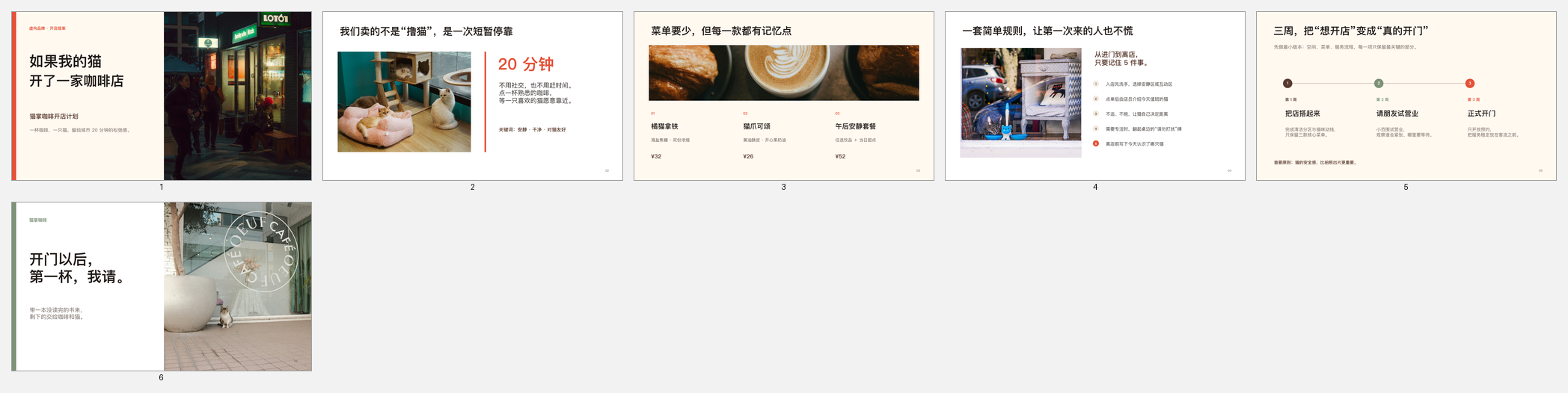
Download the editable cat café PPTX, or open the more convenient PDF preview, if you want to inspect the result before making your own.
Skill versus plugin, in plain language
These two terms are easy to confuse:
- A Skill is like a reusable professional recipe. It tells Codex which process, resources, and checks to use for a category of work.
- A plugin is an installable capability package. It may contain Skills, tools, connectors, or MCP servers.
This tutorial installs the Presentations plugin and uses the presentation workflow it provides. OpenAI describes Skills as reusable workflows and notes that a newly installed plugin should be used from a new task. You do not need to memorize the architecture; remember the practical sequence: install the capability, then ask for it in a new task.
What you need before starting
Confirm three things:
- You installed 1routers and successfully launched Codex from it.
- You can create a Codex task and send a message.
- You have a disposable folder with no sensitive information for the generated PPTX.
If setup is not complete, follow the four-step Codex beginner guide first. Do not put private identity documents, customer records, unpublished plans, or company secrets into a practice task.
Step 1: install Presentations from Plugins
Open Plugins in Codex, search the directory for Presentations, open its details, and select Install or the add control. Its description should mention slides, presentations, or PowerPoint files.
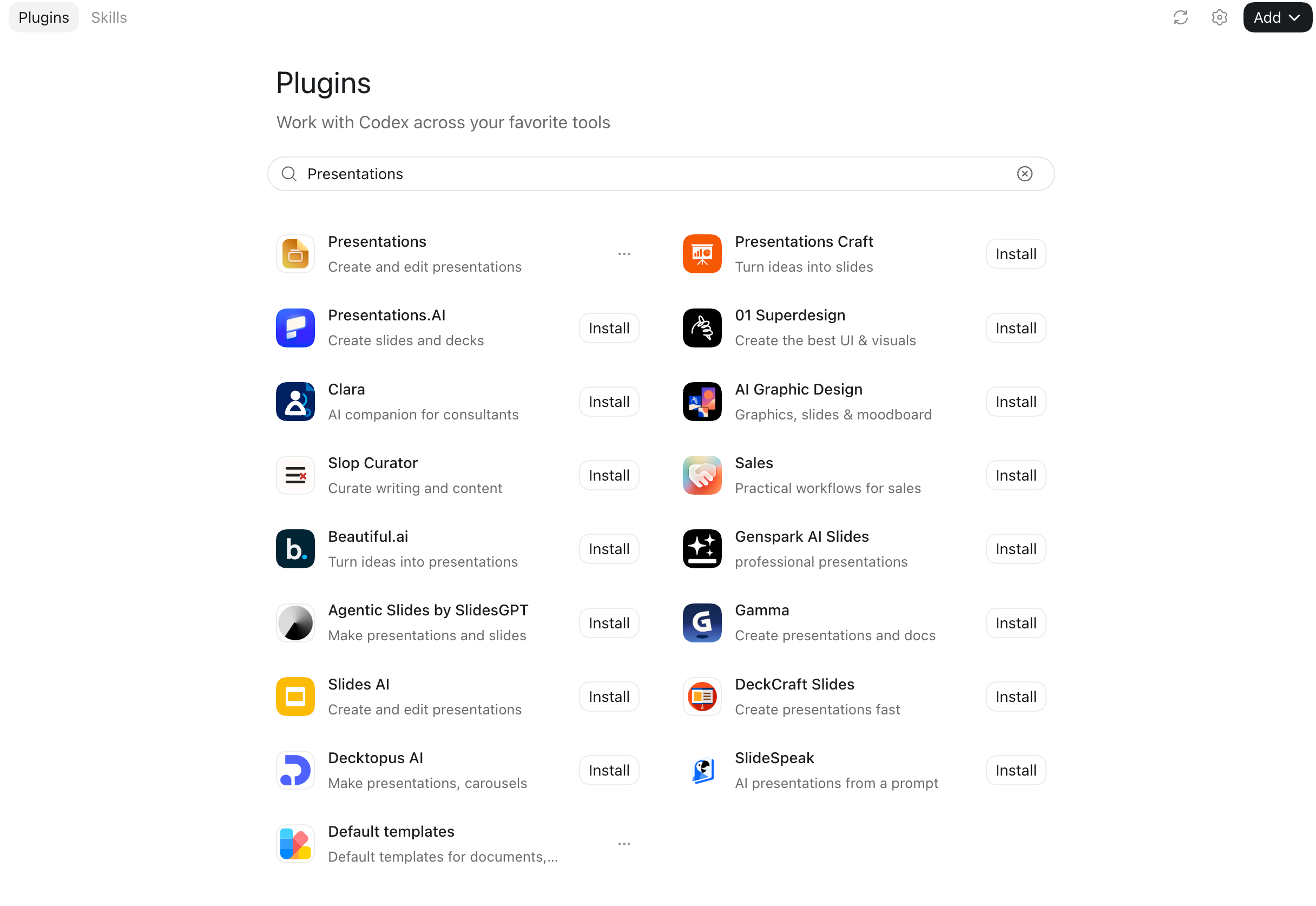
Before installing, check:
- Whether the listed capability actually matches presentation creation.
- Which permissions or external connections it requests. Do not approve a permission you do not understand.
If it does not appear, confirm that Codex is on a currently supported version and that the Plugins page loads correctly. Avoid “one-click installer” scripts from unfamiliar websites.
Step 2: start a new task after installation
Do not continue in a conversation that was already open before installation. Start a new task, select your disposable folder, and begin the demo there.
This detail matters because plugins and Skills are loaded when a task starts. If the installed capability is absent from an old task, installation may be fine; a new task is often all that is required.
Step 3: copy this prompt
Type @ in the new task, select Presentations, and paste the prompt below. If the interface already shows that the plugin is active, you can paste the prompt directly.
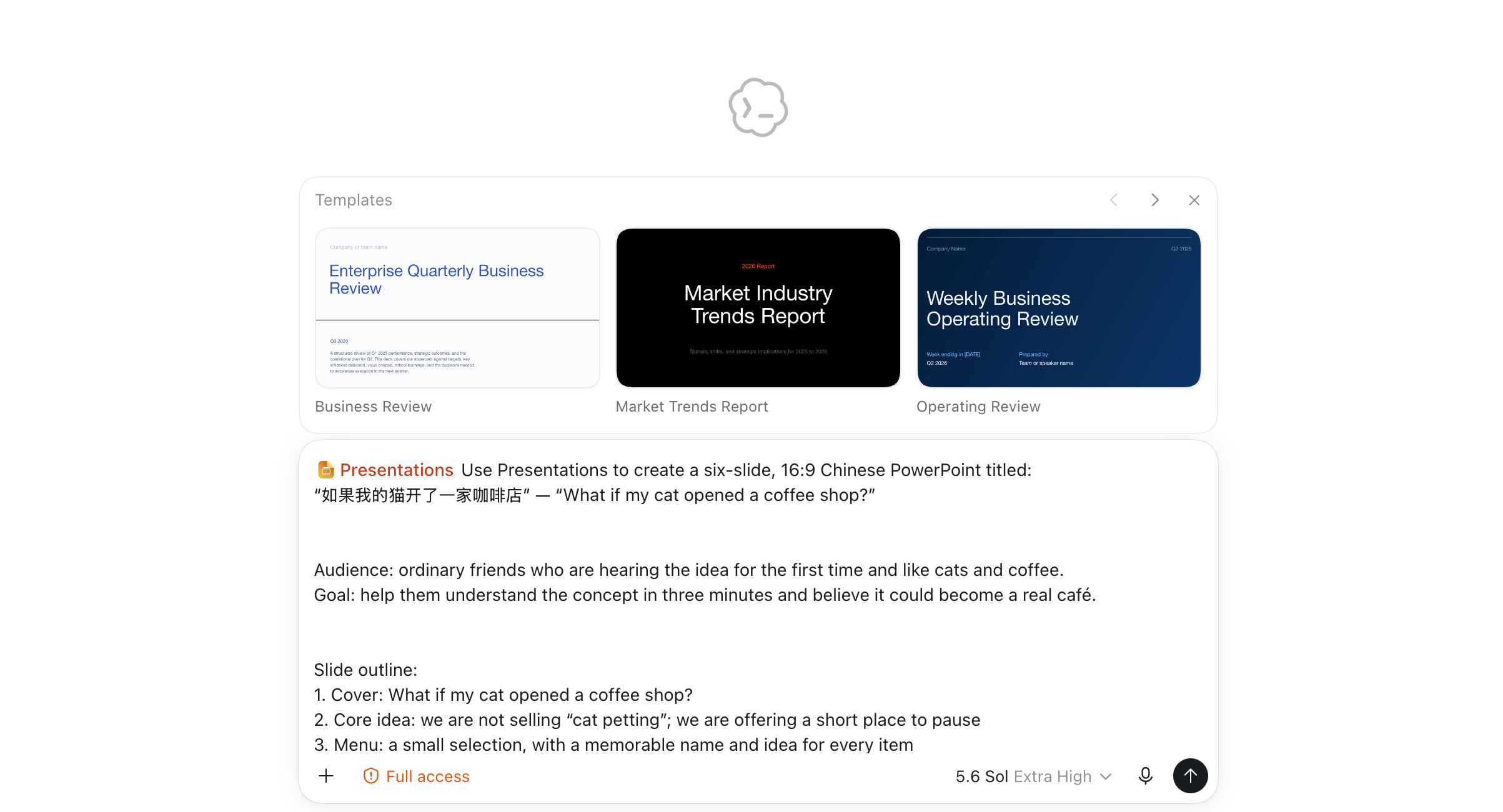
Use Presentations to create a six-slide, 16:9 Chinese PowerPoint titled:
“如果我的猫开了一家咖啡店” — “What if my cat opened a coffee shop?”

Audience: ordinary friends who are hearing the idea for the first time and like cats and coffee.
Goal: help them understand the concept in three minutes and believe it could become a real café.

Slide outline:
1. Cover: What if my cat opened a coffee shop?
2. Core idea: we are not selling “cat petting”; we are offering a short place to pause
3. Menu: a small selection, with a memorable name and idea for every item
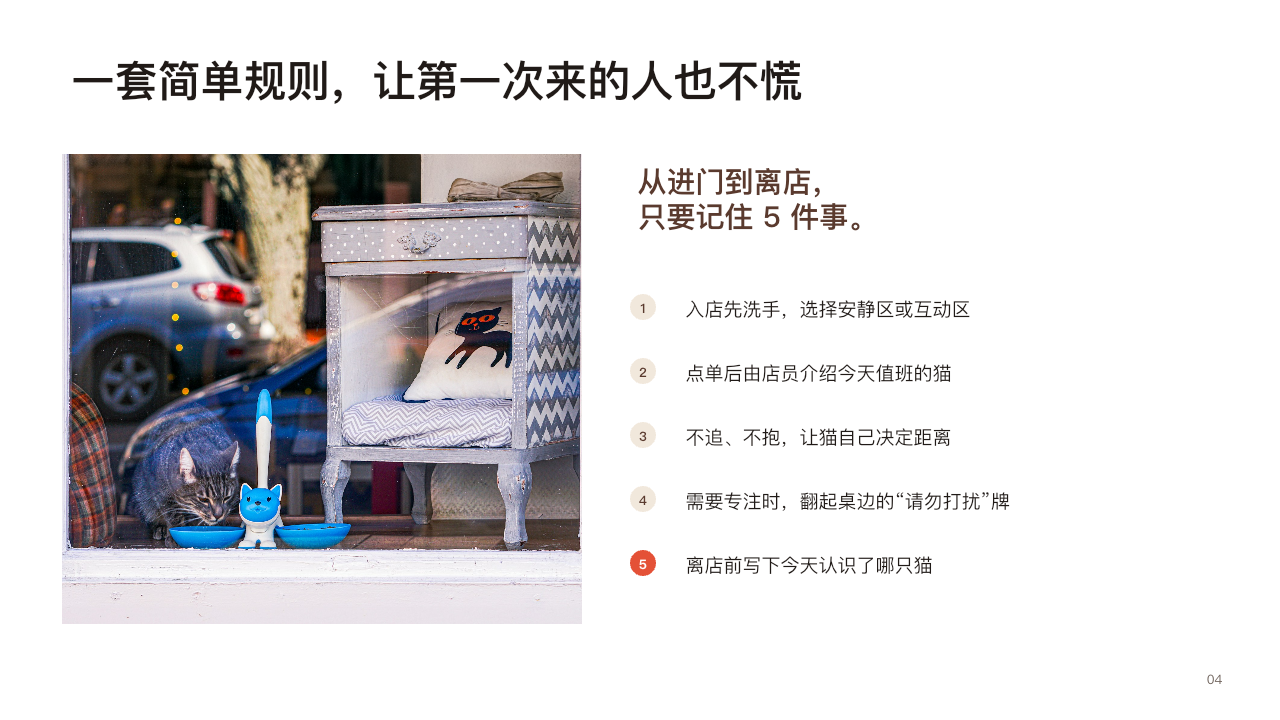
4. Beginner-friendly house rules so first-time visitors do not feel anxious
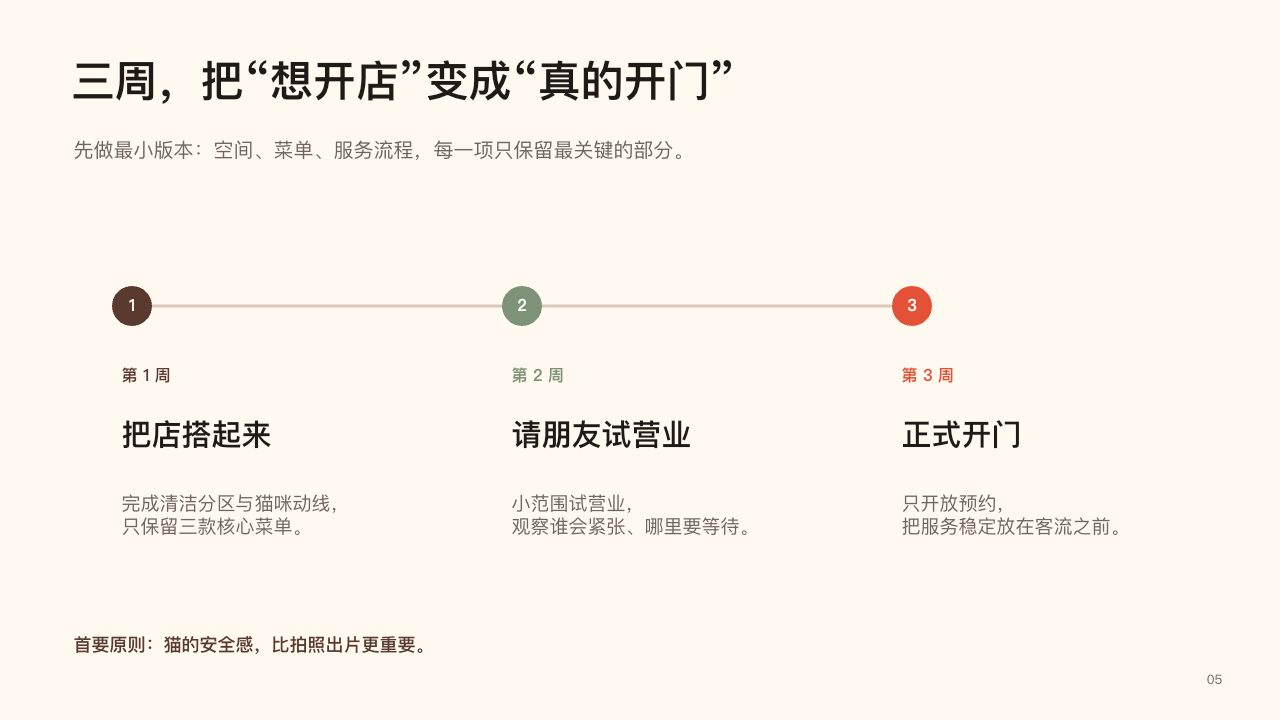
5. A three-week launch plan that turns the idea into an open door
6. Closing: when we open, the first cup is on me

Visual direction: warm, restrained, and based on real café photography.
Avoid cartoons and text-heavy layouts. Make one point per slide and keep all Chinese copy readable on a projector.
Use publicly accessible photo sources and preserve the source URL in each slide's notes.

Deliver an editable .pptx file. Before reporting the file location, inspect every slide for
text overflow, distorted images, and unreadably small type, and fix any issue you find.
This is not advanced “prompt engineering.” It simply defines six useful things: the deliverable, audience, communication goal, page count, page outline, and final file format.
For your own project, keep that structure and replace the subject, audience, and outline. Try “my first camping trip,” “explain AI to my parents,” or “a one-week family dinner plan.”
Step 4: inspect the real output and request one revision
Codex reports the PPTX location when it finishes. Open the file before treating the task as complete and check four things:
- No sentence is clipped or outside the slide.
- Photos remain sharp and are not stretched unnaturally.
- Titles and body text are readable on a normal laptop.
- The six slides form one story rather than six unrelated posters.
The menu slide in this test turned three products into scannable visual cards:

The rules slide turns potentially awkward cat interactions into instructions a first-time visitor can understand:
If the first version needs work, do not rewrite the entire prompt. Name the slide, problem, desired outcome, and what should remain unchanged:
Continue using Presentations and revise the PPTX you just made.
Slide 5 is too crowded. Shorten the supporting copy, keep only Week 01, Week 02, and Week 03,
and make every milestone readable on a laptop. Do not change any other slide.
Inspect the complete deck again, then save a new .pptx file.
“Slide + problem + target + do-not-change scope” is a reliable beginner revision formula. It is more actionable than “make it premium” or “make it prettier.”
Step 5: download the editable PPTX
After reviewing the result, download or copy the .pptx to a familiar location and open it in PowerPoint, Keynote, or compatible software. The text, images, and pages remain editable; the result is not one flattened screenshot.
Use the files from this tutorial as a reference:
- Download the editable six-slide cat café PPTX
- Download the six-slide cat café PDF for previewing
- Open the high-resolution slide overview
You have now completed a real Skill workflow: discover → install → invoke → describe → inspect → revise → export. The same mental model works for document, spreadsheet, and other Skills.
Why this is a useful first AI task
Coding tasks often require prior knowledge of repositories, terminals, dependencies, and tests. A presentation gives immediate feedback: you can see whether the layout works, read the copy, and verify that the file opens.
This example also does not pretend that Codex is always correct after one click. You still need to verify facts, licenses, photo attribution, and layout. A Skill does not replace your judgment; it organizes a repeatable process so that a first draft and a focused revision are easier to complete.
Frequently asked questions
Do I need coding or PowerPoint experience?
No. You need to describe a subject, audience, and intended result. PowerPoint experience can help with final polish, but it is not a prerequisite for this tutorial.
Why does Presentations not appear after I type @?
Confirm that the plugin is installed, then start a new task. If it is still absent, return to Plugins and check whether it is enabled or waiting for a permission or connection step. Labels may change slightly as the interface evolves.
How is a Skill different from ordinary chat?
Ordinary chat relies primarily on the current prompt and conversation context. A Skill also supplies reusable steps, resources, and checks for a category of work. That structure is useful when a task has a defined artifact workflow, such as creating and validating a PPTX.
Can I change the topic to a résumé, trip, or school project?
Yes. Replace the topic, audience, page count, and outline. Remove sensitive personal or company information, and independently verify facts, citations, and school requirements.
Can I do this with DeepSeek, Qwen, or Kimi?
Creating an editable PPTX depends on more than a model's ability to write Chinese. The task must have the Presentations capability, the selected model must support the required tools, and the route must be available. Do not infer artifact support from the model name alone. Read the DeepSeek, Qwen, and Kimi setup guide, then test with a disposable task.
Can I use any image found online?
No. Publicly accessible does not mean licensed for commercial use. Preserving source URLs in slide notes is only a starting point. Before publishing or presenting commercially, verify each image's license, attribution, and permitted use, or replace it with your own or licensed media.
What if generation stops halfway?
Confirm that the account, route, and model remain available, then ask Codex to continue from the existing file instead of immediately generating many duplicates. For a larger deck, approve an outline and three-slide sample before expanding it.
Next: replace the cat café with your own idea
Copy the prompt, replace the topic with something you genuinely want to share, and complete one revision using “slide + problem + target + do-not-change scope.” Finishing one small artifact will teach you more than memorizing a catalog of terms.
The example deck was created through a real workflow and inspected slide by slide for content, layout, and file integrity on August 29, 2026. Installation and invocation guidance follows OpenAI's Skills and Plugins documentation and the official Plugins guide. Interfaces and available plugins may change, so use the labels visible in your current Codex version. 1routers is an independent product and is not affiliated with or endorsed by the software or model providers mentioned here.