A no-code Codex Tools demo for beginners
How beginners can use Codex Tools: organize 9 messy weekend photos automatically
Your first Tools task does not need to involve a repository. Give Codex a disposable folder of nine weekend photos, ask it to organize copies, and finish with three browsable categories plus a searchable album index.
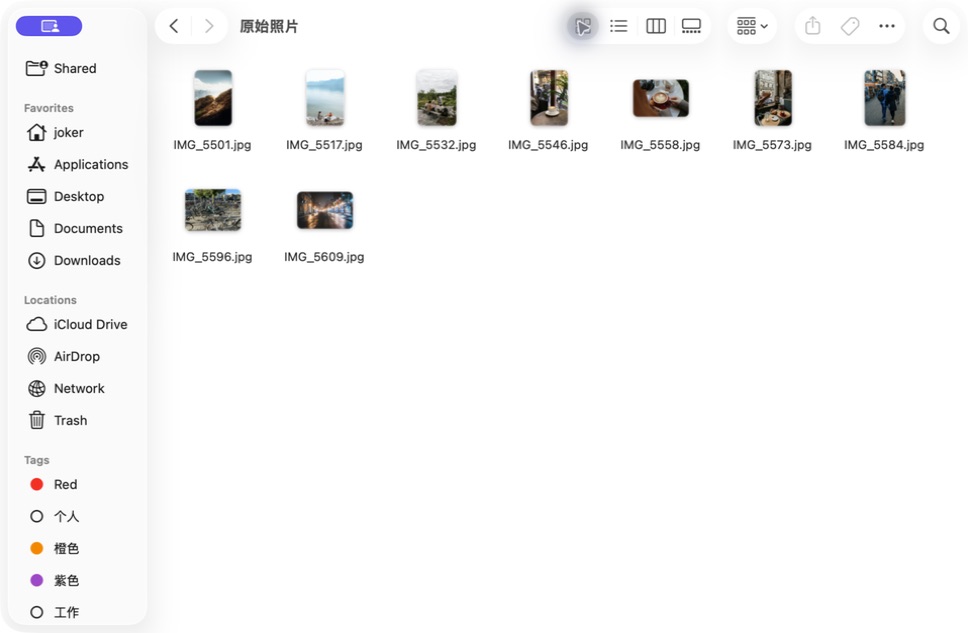
The result: Codex Tools can turn IMG_5501 into a browsable album
Codex Tools can read images and files, create folders, copy files, and write Markdown within the scope you allow. A confidence-building first project is to turn nine meaningless camera filenames into a small album you can browse by topic and search by filename.
This tutorial uses a real tool run. Before organization, Finder showed nine ordinary camera-style names:
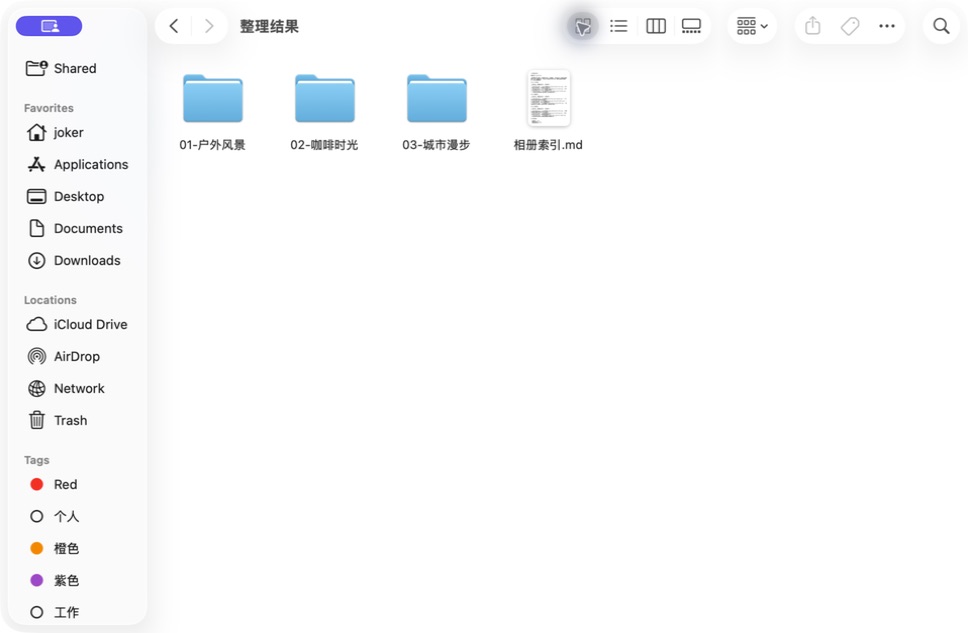
Afterward, the result contained three topic folders and an 相册索引.md album index:
Start by downloading the nine-photo practice pack (ZIP, about 8.1 MB). It contains public Unsplash practice images and a source record—no 1routers development material and no private user photos.
Tools, Skills, MCP, and plugins in plain language
You do not need to memorize an architecture diagram. Four simple analogies are enough:
| Term | Beginner mental model | Example in this tutorial |
|---|---|---|
| Tool | A “hand” Codex can use now | View an image, create a folder, copy a file, write an index |
| Skill | A reusable procedure for directing those hands | The Presentations workflow in the previous tutorial |
| MCP | A bridge from Codex to an external service | A local memory, drive, design app, or business system connection |
| Plugin | An installable capability package | It may provide Skills, tools, MCP servers, or connectors |
OpenAI's official model guidance lists web search, file search, MCP, computer use, and code execution as distinct tool capabilities. Availability depends on the Codex version, task environment, and selected model, so inspect the capabilities in your actual task instead of inferring them from a model name. See the OpenAI model and tool guidance.
This walkthrough does not require installing another Skill. It uses image-reading and local-file tools already available to the task. Practice with the disposable pack before using personal photos.
Before you start: give Codex one safe practice folder
Confirm four things:
- You launched Codex through 1routers and can create a new task.
- The selected model supports image understanding and the tools this task needs. A Multimodal label can be a useful hint, but a small test is the final check.
- You are using the practice pack or copies of a few non-sensitive images.
- Your first test contains no identity documents, home addresses, children's faces, company material, or precise location data.
If Codex setup is incomplete, follow the four-step beginner guide first.
Step 1: download and unzip the nine practice photos
Download the weekend photo practice pack, unzip it, and open the 原始照片 folder. The files deliberately use unhelpful camera-style names:
IMG_5501.jpg
IMG_5517.jpg
IMG_5532.jpg
IMG_5546.jpg
IMG_5558.jpg
IMG_5573.jpg
IMG_5584.jpg
IMG_5596.jpg
IMG_5609.jpg
Do not sort them manually. The set includes hiking, a lake, a picnic, cafés, a city market, bicycles, and a nighttime street—enough variety to test whether Codex understands visible content before grouping files.
Step 2: create a Codex task for this folder only
Start a new Codex task and select the extracted practice directory as its working folder. This creates two useful boundaries:
- Clear scope: the task only needs files from this exercise.
- Easy verification: every new file should appear in one known location.
If the operating system asks for folder access, confirm that the name matches the practice directory. Do not select your entire Desktop, Downloads folder, or photo library simply to save one click.
Step 3: copy this safe, copy-only prompt
Paste the complete prompt below. It uses ordinary language but makes the safety boundary, naming rule, and success criteria explicit:
Organize the nine images in the “原始照片” folder.

Goal: I should be able to understand each image from its filename and find photos quickly by topic,
without opening them one by one. Inspect every image first, then place organized copies in a new
folder named “整理结果”.

Requirements:
1. Do not delete, move, overwrite, or rename any original photo.
2. Create three to five topic folders based on visible content; do not group mechanically by date.
3. Give each copy a short, searchable English filename using only lowercase letters, numbers, and hyphens.
4. Create “相册索引.md” in the result root with the original name, new path, and one-sentence description.
5. Explain your classification plan before acting and flag any uncertain image.
6. When finished, verify that the source still contains nine photos and the result also contains nine images.
7. Do not read, modify, or create anything outside this practice directory.

Show me the plan first. After execution, report the result and both file counts in a short checklist.
The most important parts are not the words “automatic organization.” They are the three guardrails: one directory, copies only, and explicit counts. The same pattern works for documents, invoices, and a Downloads cleanup.
Step 4: inspect the plan before allowing tool actions
Codex should explain how it will inspect the files, which categories it expects to create, and whether originals will change. If it does not repeat the safety boundary, add:
Do not change any file yet. Confirm that you will only create copies and name the exact directory where every write will happen.
During execution, you may see prompts for reading files, creating folders, or writing an index. Check each target path. Normal output belongs in 整理结果, not over the source folder.
The real run produced:
01-户外风景— mountain hiking, a lakeside break, and a forest picnic.02-咖啡时光— a window-side latte, a red latte cup, and a café table.03-城市漫步— an open-air market, bicycle parking, and a rainy city street at night.
Step 5: verify the result instead of trusting “done”
Open 整理结果 and check four things:
- The source folder still contains nine photos.
- The result also contains nine images, with no omissions or duplicates.
- Each new filename describes its image without requiring a preview.
相册索引.mdmaps every original name to its new path.
For example, the three café copies changed from IMG_####.jpg to useful names:
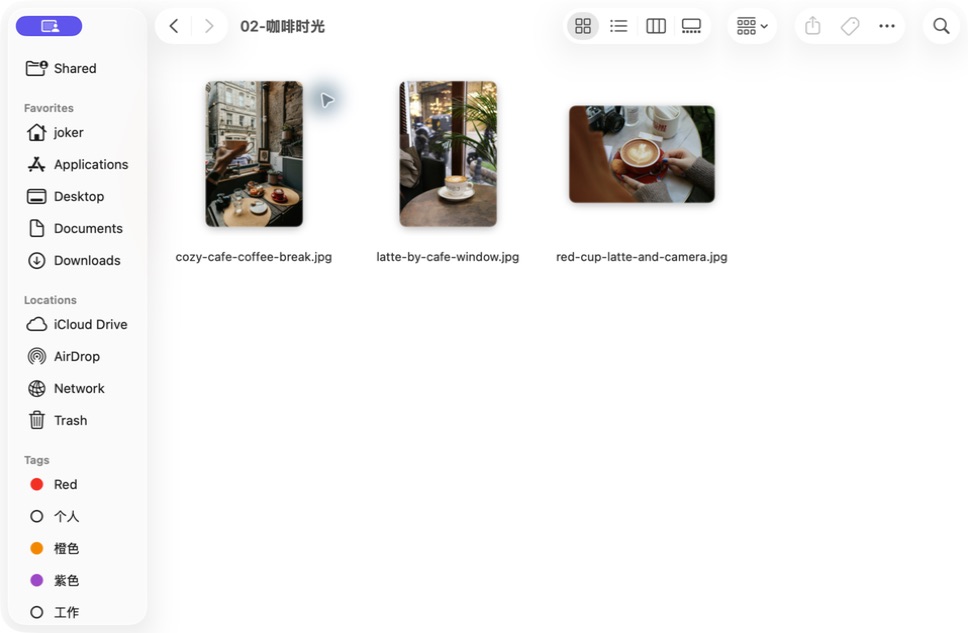
cozy-cafe-coffee-break.jpg
latte-by-cafe-window.jpg
red-cup-latte-and-camera.jpg
For this walkthrough, every source-copy pair was also compared with SHA-256. All nine pairs matched exactly: the image data was not compressed, redrawn, or edited. Only the copy's location and name changed.
What did the Tools actually do?
This was more than a conversation about how photo organization might work. Codex performed a chain of tool actions:
- Read a directory to establish the input count and scope.
- Inspect images to classify visible content.
- Create folders with a small, understandable category system.
- Copy and rename files while preserving the originals.
- Write Markdown that maps old names to new paths and descriptions.
- Read and count again to verify nine source files against nine results.
That is the practical distinction between a Tool and an ordinary answer: the system can act inside an authorized scope and return files, not merely suggest steps. Because Tools can act, boundaries, backups, and verification matter more than a clever prompt.
How to fix a wrong category
Avoid a vague request such as “organize it better.” Identify the file, target, unchanged scope, and success check:
Move the copy “03-城市漫步/amsterdam-market-walk.jpg” into a new folder named “04-周末市集”,
then update “相册索引.md”. Do not modify the source photo or any of the other eight images.
Verify that the result still contains exactly nine images.
The reusable formula is object + action + destination + do-not-change scope + verification number.
Frequently asked questions
Do Codex Tools need to be installed like a Skill?
Not always. Some tools are provided by the current Codex task, runtime, or model; a plugin can also add tools. Inspect the task's available capabilities and permission prompts. Do not download an unfamiliar script merely because it promises “Tools.”
Why can Codex read filenames but not understand the photos?
The selected model may lack image understanding, the task may not expose an image-reading tool, or folder permission may be missing. Test one non-sensitive image first and choose a model that explicitly supports multimodal input and the required tools.
Why use English filenames instead of Chinese?
Chinese filenames are valid. This tutorial uses lowercase English with hyphens for predictable syncing, command-line use, and URL references. If Chinese is easier for you, change requirement 3 to “use short Chinese names without spaces or special characters.”
Can I organize thousands of phone photos immediately?
Do not start there. Copy 10–30 photos to a separate folder, validate the categories and privacy rules, then expand in batches. Photos can contain faces, addresses, location metadata, and device information; you must decide whether the task is allowed to read them.
Could Codex delete the wrong photo?
Any file-management tool can make a mistake when scope or instructions are unclear. Use copy-only practice, back up real photos, and require a plan before execution. “Clean up my Desktop” is not a sufficient safety instruction.
Can DeepSeek, Qwen, or Kimi complete this demo?
Possibly, but Chinese fluency alone is not enough. The model also needs image understanding, compatible file tools, and working tool calling in the current task. Use the DeepSeek, Qwen, and Kimi setup tutorial, then test the nine-photo pack model by model.
Where did the nine public photos come from?
The practice images are from Unsplash, with the original pages preserved: Daniel J. Schwarz, Bram Bergers, Wasa Crispbread, Esra Afşar, Khloé Kieu, Toa Heftiba, Tolga Ahmetler, Michael, and Erik Mclean. Recheck the current Unsplash License before commercial reuse.
Next: organize one small folder and build confidence
The goal is not to prove that Codex should control your entire file system. It is to help a first-time AI user complete one visible, reversible task: understand nine photos, organize nine copies, and leave one traceable index.
Download the pack and run the prompt once. When the categories and verification method fit your habits, apply the pattern to travel photos, recipe screenshots, course material, or Downloads. The more a tool can do, the more valuable it is to begin with a small, reversible, testable task.
This walkthrough was executed on August 29, 2026. We verified source and result counts, folder structure, index content, and all nine file hashes. Interfaces, tool names, and model support can change, so use the capabilities visible in your current Codex version. 1routers is an independent product and is not affiliated with or endorsed by the model, software, or photography providers mentioned here.